
So you want to join the digital broadcast revolution? Welcome to the control room. Before you can become the next streaming sensation, you need the right tools. Think of this as assembling your digital command center—minus the confusing diagrams and extra screws.
Your journey begins with a simple transaction. You trade a bit of bandwidth for professional-grade broadcasting power. We’re heading to the official source, the open-source haven where this magic happens.
You’ll face your first choice: the straightforward installer or the portable option for digital nomads. The installation is a mere formality. The real initiation starts when you first gaze upon the blank canvas of the interface.
It looks like a spaceship control panel from a vintage sci-fi film. Don’t panic. We’re going to tame this beast together.
First, we’ll connect your digital identity to the platforms that matter. Then we’ll summon your image and voice into the void. We’ll build your first scenes—the fundamental building blocks of your broadcast.
This isn’t just technical configuration. It’s a rite of passage from consumer to creator. Consider this your pre-flight checklist before you hit that big, red, wonderfully terrifying button.
Customizing Scenes & Overlays
If the basic OBS setup is a blank canvas, then scenes and overlays are your brushes and palette. This is where utility becomes artistry. Your stream transforms from a simple screen capture into a directed production. Let’s break down this creative process.
Scenes are your narrative chapters. Think of them as different camera angles in a film. You might have:
- Intro Scene: Your welcoming stage with branding
- Gameplay Scene: The main event with game capture and webcam
- Break Scene: Intermission with music or chat focus
- Ending Scene: Your sign-off with social links
Each scene is built from Sources—the individual elements that populate your frame. The Sources panel is your toolbox. Here’s what you’re working with:
| Source Type | Primary Use | Best For | Pro Tip |
|---|---|---|---|
| Video Capture Device | Webcam or camera feed | Facecam, reaction shots | Use Logitech C920 or better for 1080p |
| Display Capture | Capturing your entire screen | Gameplay, software tutorials | Set capture rate to match game FPS |
| Image | Static graphics and logos | Branding, borders, overlays | Use PNG with transparency |
| Text (GDI+) | Live text elements | Titles, alerts, lower thirds | Install custom fonts for uniqueness |
| Browser Source | Interactive web content | Stream alerts, chat widgets | Use local HTML files for stability |
Transitions stitch your scenes together. The default cut is functional but boring. Fade and swipe add professionalism. For true cinematic flair, explore transition plugins. A smooth transition is like a well-edited film cut—it should be felt, not noticed.
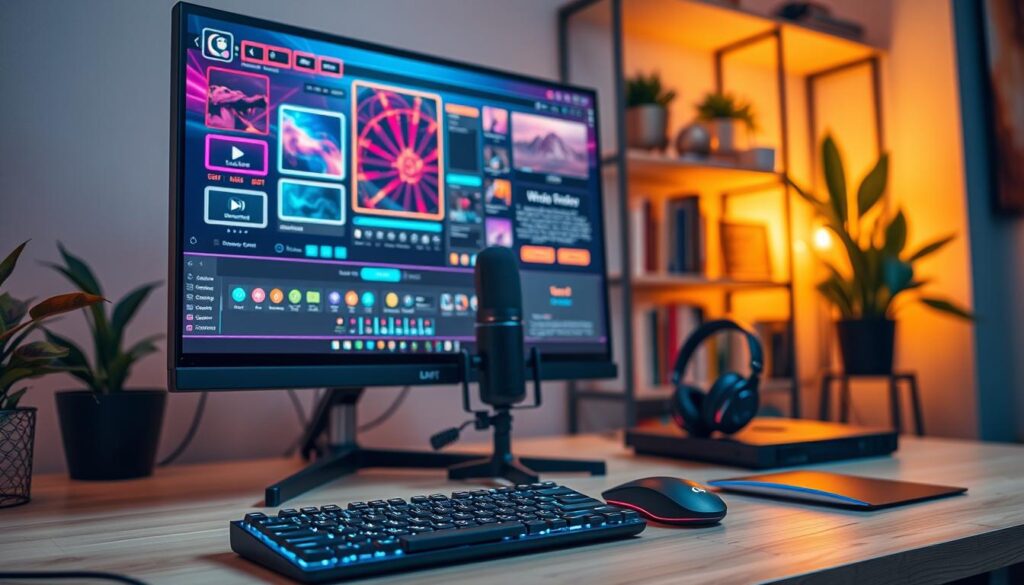
Now, let’s talk overlays. These are your production design. A good overlay is like a tasteful frame around a painting. It enhances without distracting. It tells viewers who you are without shouting. Modern overlays typically include:
- Webcam border with your logo
- Social handle display
- Event or stream title graphic
- Sponsor integration areas
- Minimal chat or alert boxes
The built-in OBS themes—Yami’s moody blues, Gray’s utilitarian chic—are starting points. They’re the equivalent of a furnished apartment. Functional, but not yours. To truly customize, you enter the realm of QSS files. These let you reskin the OBS interface itself. Why shouldn’t your tools look as cool as your stream?
Plugins are where OBS becomes limitless. StreamFX is the standout. It adds visual effects that transform basic sources. Think blur effects, 3D transformations, advanced color grading. It’s the difference between filming with a smartphone and using a professional cinema camera.
Remember, customization serves your content. A minimalist talk show needs different overlays than an energetic gaming marathon. Your choices should reflect your brand. They should help you tell your story better. Just as you need the right tools to follow live esports events, you need the right visual framework to present your content.
Start simple. Master one scene transition. Add one tasteful overlay element. Then build gradually. Your OBS setup should evolve with your streaming style. The goal isn’t complexity—it’s coherence. Every element should have purpose. Every transition should serve the narrative flow.
Adding Alerts, Bots, & Widgets
Alerts, bots, and widgets are like the lights, sound, and teleprompter of your stream. They make your solo show into a dynamic experience for everyone watching.
Your streaming software becomes more than just a tool for broadcasting. Alerts are like digital bells that ring out when someone interacts with your stream. They’re not just notifications; they’re small ways to say “thank you” to your viewers.
That flashing graphic and soundbite? It’s your way of saying thanks without stopping your show. It’s a simple way to show appreciation, using just pixels and sound.
To add these features to your streaming software, you use a Browser Source. Tools like StreamElements or Streamlabs help you create these alerts. You design them, choose when to trigger them, and add them to OBS. Your stream becomes interactive, starting a new level of engagement.
Bots are like your behind-the-scenes team. They keep your stream running smoothly by managing chat, filtering out spam, and posting links. Some bots even run games or track loyalty points.
Think of bots as the unsung heroes of your streaming software world. They’re the ones keeping everything organized and the energy high. They let you focus on your performance.
Without bots, you’d have to do everything yourself. With them, you have a team that helps you run the show.
Widgets are like the dashboard of your stream. They show real-time data, like how close you are to your goals or what your viewers are saying. They also display your music and other important details.
This whole system turns your streaming software into a dynamic tool. It makes watching your stream more engaging. Donations and new followers become special moments, complete with animations and sounds.
Learning to use these tools well is what sets professionals apart from hobbyists. You’re not just talking to a camera; you’re hosting an event with interactive elements and live feedback. Your screen becomes a two-way conversation.
The tech is easy to use, but the philosophy behind it is deeper. You’re creating a shared language with your viewers. Every alert and bot command is a part of this language. Widgets show how well you’re doing in real-time.
These tools help turn passive viewers into active participants. They’re not just extras; they’re the foundation of your community.
Troubleshooting Common Issues
Every stream has its plot twist. Audio desync is the first act villain, making your voice a ghost haunting your own video. Open OBS and visit the Advanced Audio Properties menu. A negative offset there is your time machine, syncing sound with picture.
When OBS declares “Starting the output failed,” treat it like a system lockdown. Update your graphics drivers. Run OBS as an administrator, granting it the keys to the kingdom. Check your firewall isn’t treating your stream like an intruder.
Dropped frames are the stutters in your broadcast’s monologue. They often point to a weak link in your setup. Is your processor struggling? The battle between quality and stability is real. Lower your resolution from 1080p to 720p. Swap 60fps for 30. Choose the NVENC encoder over x264 if your hardware allows.
Remember, streaming is a chain. A weak CPU or slow upload speed breaks it. For a smooth broadcast, your gear matters. A guide on streaming hardware requirements details the needed processing power and internet speed. This knowledge turns guesswork into strategy.
Mastering OBS isn’t just about scenes and alerts. It’s about becoming the technician who fixes the show while the curtain is up. Your stream’s reliability is the final, silent overlay.